List Email Action Configuration
The ListEmail action is available by default on the Contacts and Leads List Views. You can disable this action via the Lightning App Builder by going to the List View, clicking the Gear Icon to select Edit Page, then selecting the InCountry List View component and unchecking the Send List Email option.
To use ListEmail action, the following pre-configuration is required. You need to add a new formula field to both the Contact and Lead objects. This field must contain the 18-character record Id.
-
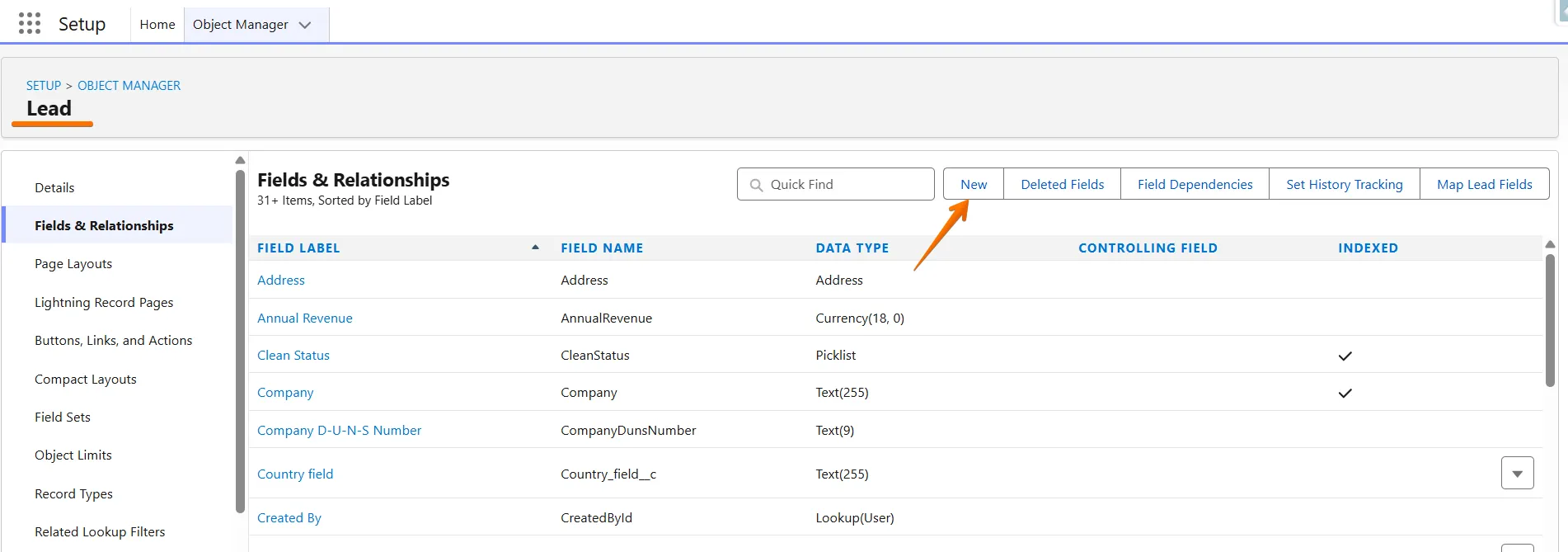
Click the Gear Icon > Setup > Object Manager, select Lead or Contact, and click New to add a new field.

-
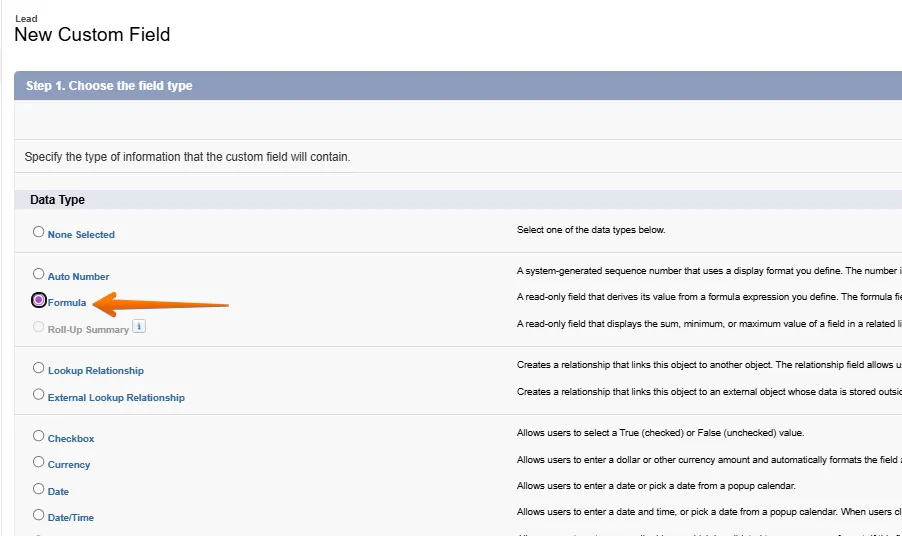
Select the field Data Type > Formula, then click Next.
-
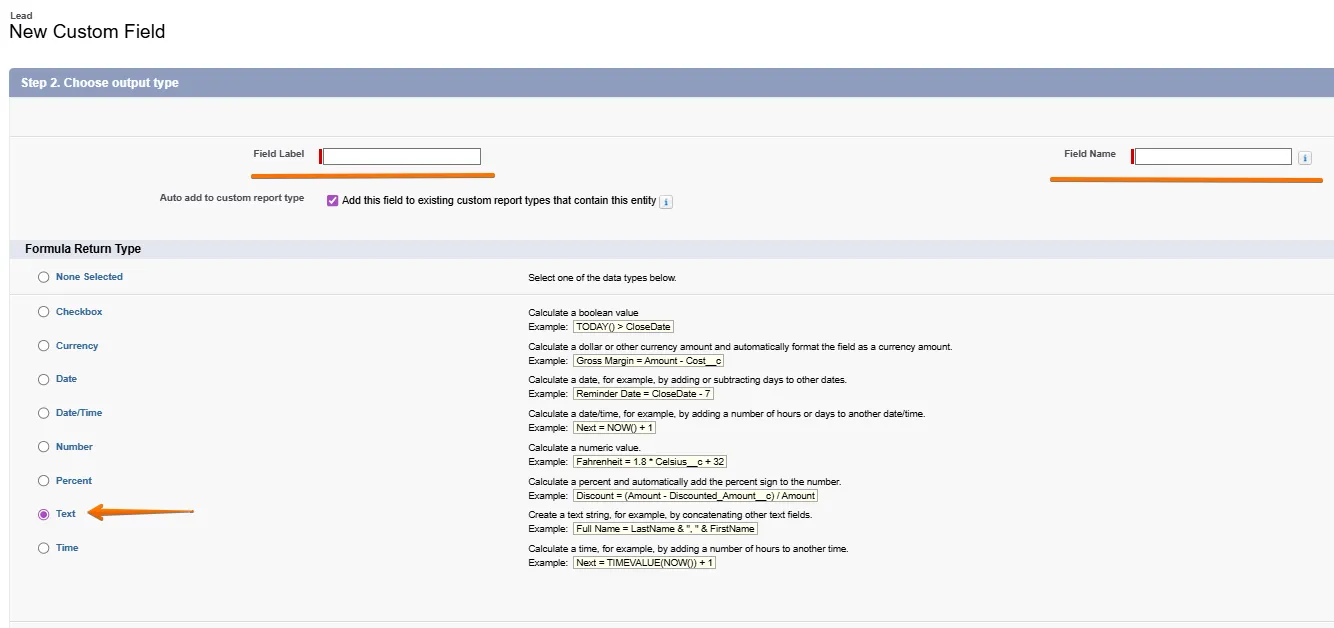
Fill in the Field Label and Field Name. The formula field name can be any value (for example,
SelfId). For the Formula Return Type, select Text. -
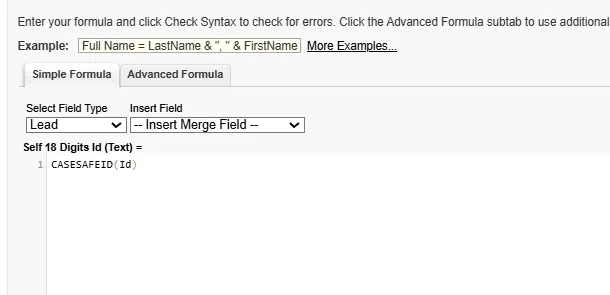
In the formula field, enter CASESAFEID(Id) and click Next. Select the profiles for which the field will be available, then click Next. Uncheck all existing layouts in the list where the field is not required on the Detail Page, and click Save.
-
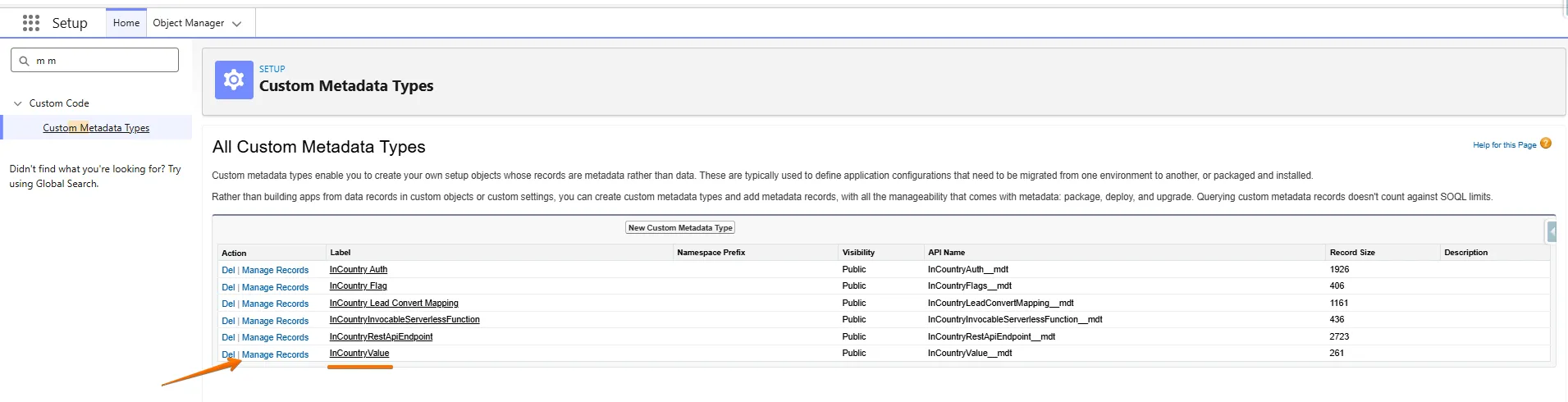
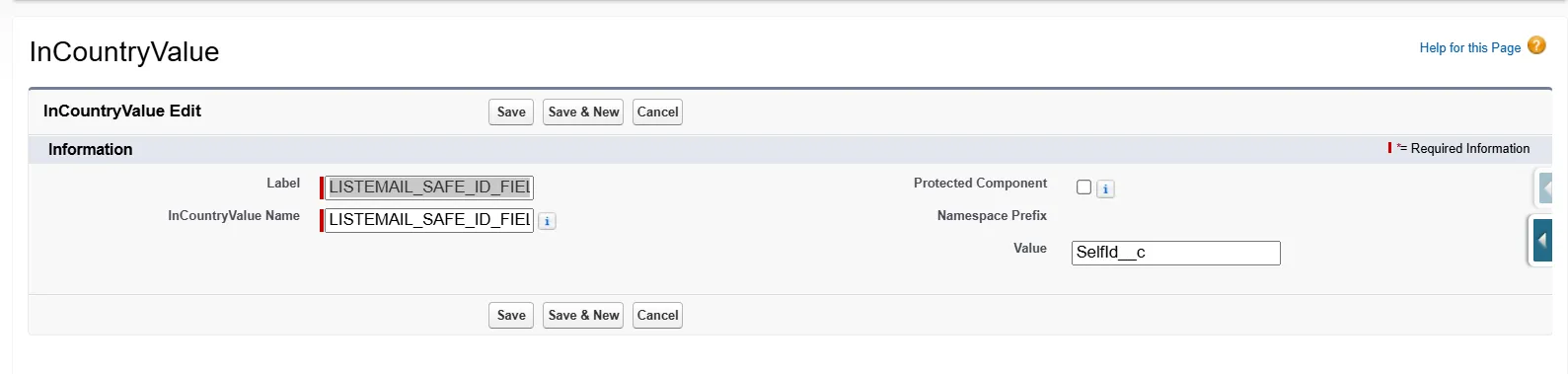
Then, go to Custom Metadata Types, select InCountryValue, click Manage Records, and then click New to create a new value.
-
For the Label, enter '
LISTEMAIL_SAFE_ID_FIELD_NAME'; for the InCountryValue Name, also enter 'LISTEMAIL_SAFE_ID_FIELD_NAME'. In the Value field, enter the formula field name you created earlier (e.g.,SelfIdField__c). Then click Save.