Salesforce Dynamic Forms & Dynamic Actions Setup Guide
Dynamic Forms breaks the Record Detail component on your Lightning pages into individual field and section components that you can put anywhere on the page, including in separate tabs and accordion sections. You can use visibility rules to show your end users only the fields they need to see, when they need to see them.
1. Custom Dynamic Forms Configuration
Instead of standard Salesforce out-of-the-box Dynamic Forms, this setup utilizes custom components to provide modular, secure layouts.
1.1 Components Overview
- InCountry Dynamic Form Section: A container component that hosts individual fields.
- InCountry Dynamic Form Field: Individual field components that must be linked to a parent section.
1.2 Step-by-Step Configuration
-
Navigate to Target Record: Open any record of the target object in Lightning Experience.
-
Launch App Builder: Click the Setup Gear icon (top-right) and select Edit Page.
-
Add Sections:
-
Locate the custom InCountry Dynamic Form Section component in the left-hand palette.
-
Drag and drop the component onto the canvas.
-
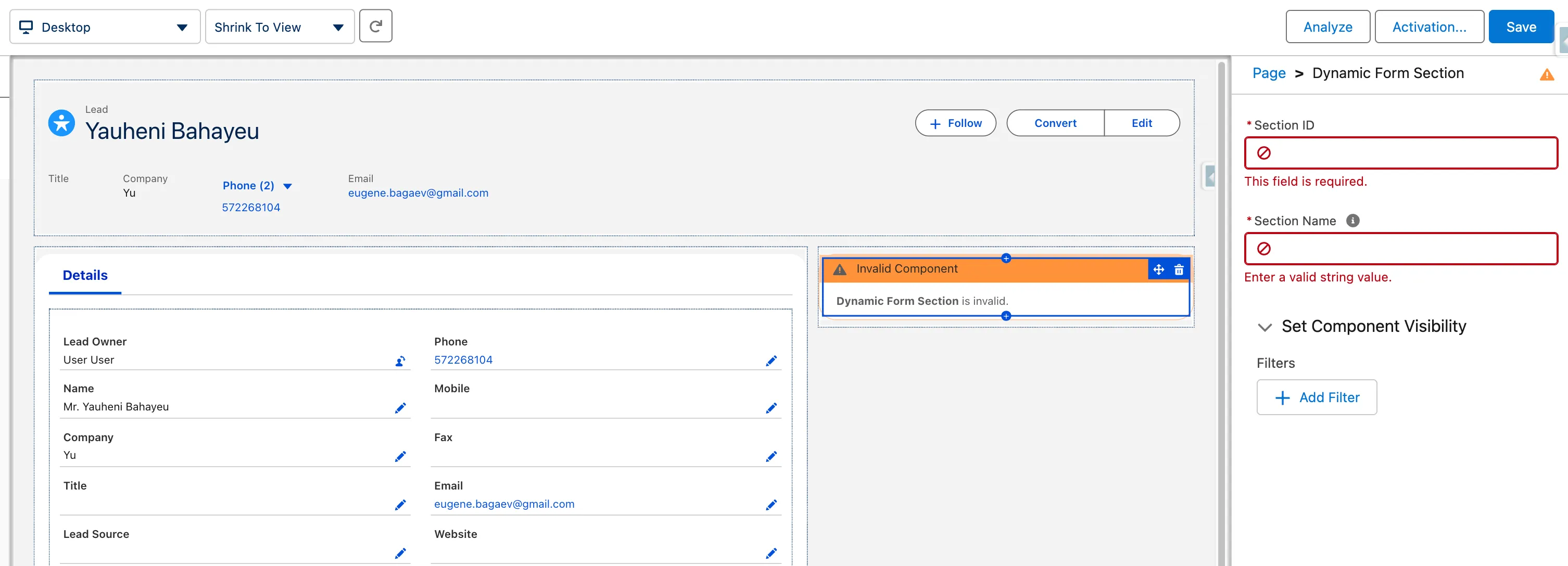
Configure Section Properties:
-
Section Id: Enter a unique numeric identifier (e.g.,
1for the first section on the page). This ID must be unique across all sections on the page. -
Section Name: Enter the desired display name for the section.

-
-
-
Add Fields:
-
Locate the custom InCountry Dynamic Form Field component in the left-hand palette.
-
Drag and drop the component onto the canvas (can be placed anywhere on the page).
-
Configure Field Properties:
-
Section Id: Enter the ID of the parent section this field belongs to. Fields are rendered inside their parent sections, so establishing this relation is mandatory.
-
API Name: Enter the exact API name of the target Salesforce field.
-
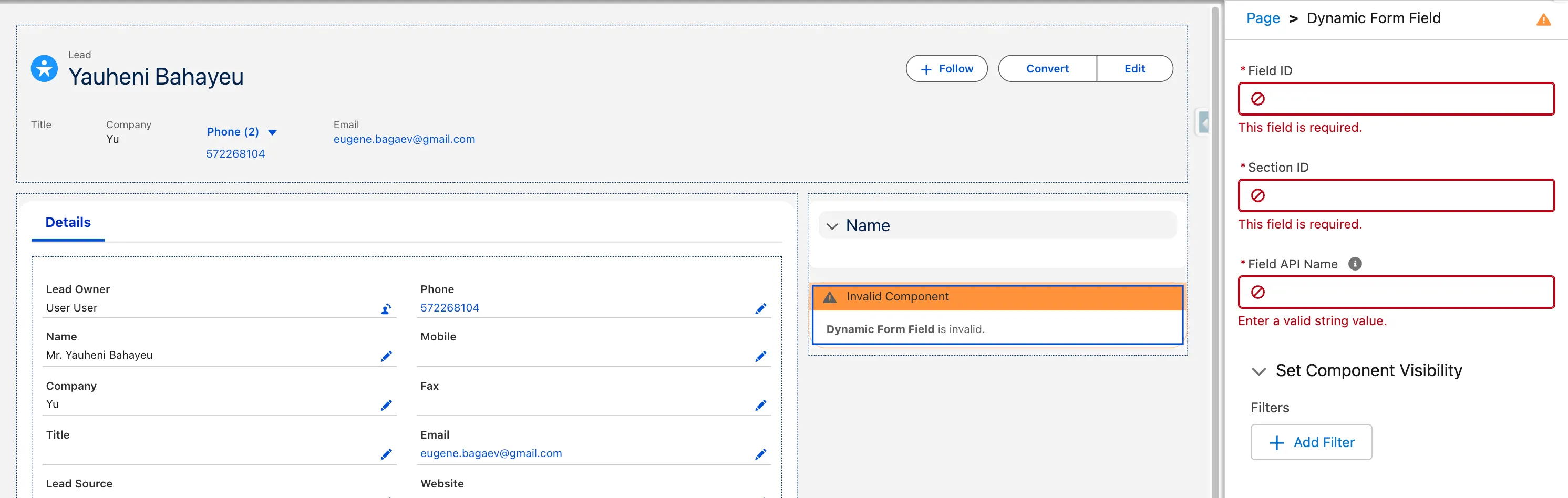
Field ID within the same Section must be unique. If multiple fields belonging to the same section share the same ID, which may cause data to display incorrectly.
1.3 Visibility Rules
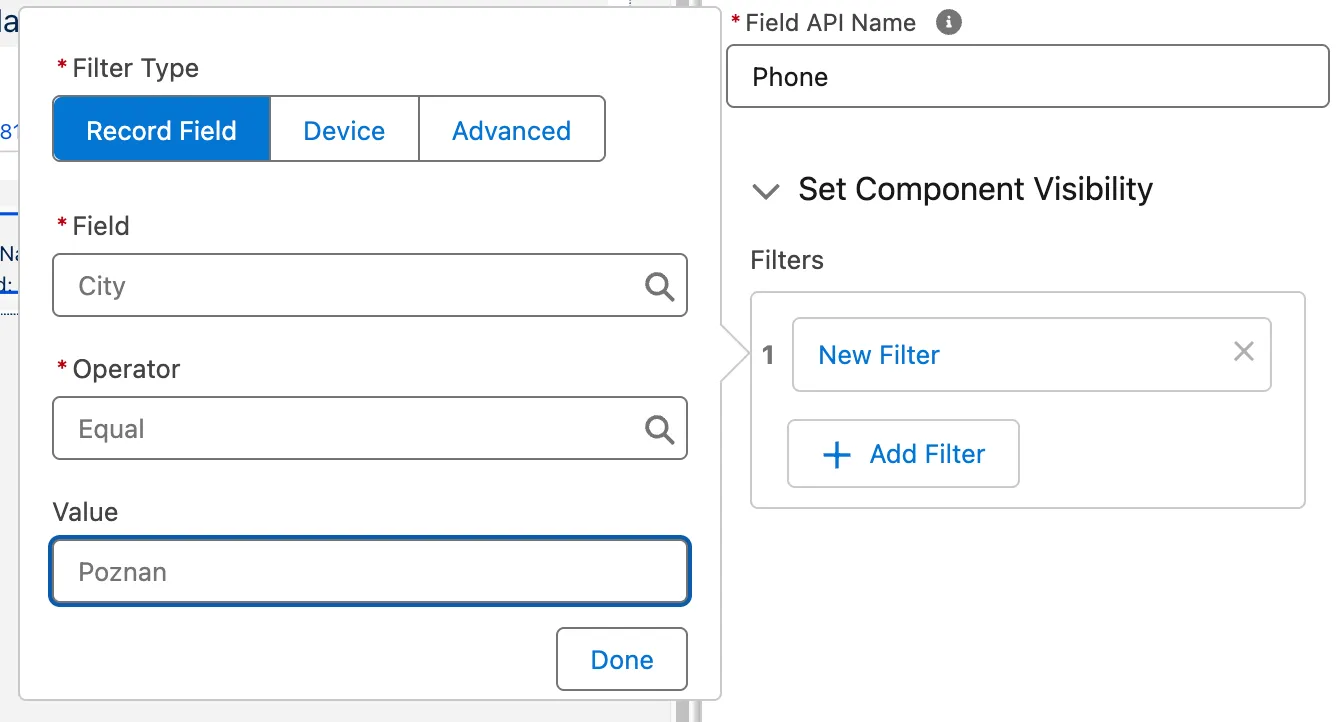
Visibility filters can be defined at both the section and field levels. Select the respective component on the canvas and click Add Filter under the visibility settings in the right-hand properties pane.
- Record Field Filter: Evaluates current record fields (e.g., showing
Loss Reasononly whenStage = Closed Lost). The layout updates instantly when edits are made directly via the customInCountry Record DetailorInCountry Dynamic Form Sectioncomponents. Changes made via external APIs or standard out-of-the-box components require a page refresh. - Device Filter: Evaluates the user's active device category (Desktop / Phone). Note that changing device simulation or user agent settings requires a page refresh.
- User/Advanced Filter: Evaluates active user attributes (such as Profile or Role). Modifying active user attributes requires a page refresh.
2. Custom Dynamic Actions Configuration
With dynamic actions, you can add flexibility and control to actions on your record pages. Assign dynamic actions in the Lightning App Builder instead of in the page layout editor, and then apply filters to control when and where actions are visible to users.
2.1 Step-by-Step Configuration
-
Identify the Header: Ensure the InCountry Highlights (Header) component is placed on the canvas. Click on this component and check the Use Dynamic Actions checkbox in the right-hand properties pane to enable custom action processing.
-
Add Action Components:
-
Locate the custom InCountry Dynamic Action component in the custom components section.
-
Drag and drop the component onto the canvas (each instance of this component represents a single action button).
-
-
Configure Action Properties:
-
Select Action: Choose the desired Quick Action or standard action from the properties pane.
-
Order: Set a numeric value to define the rendering order of the button on the Header component.
-
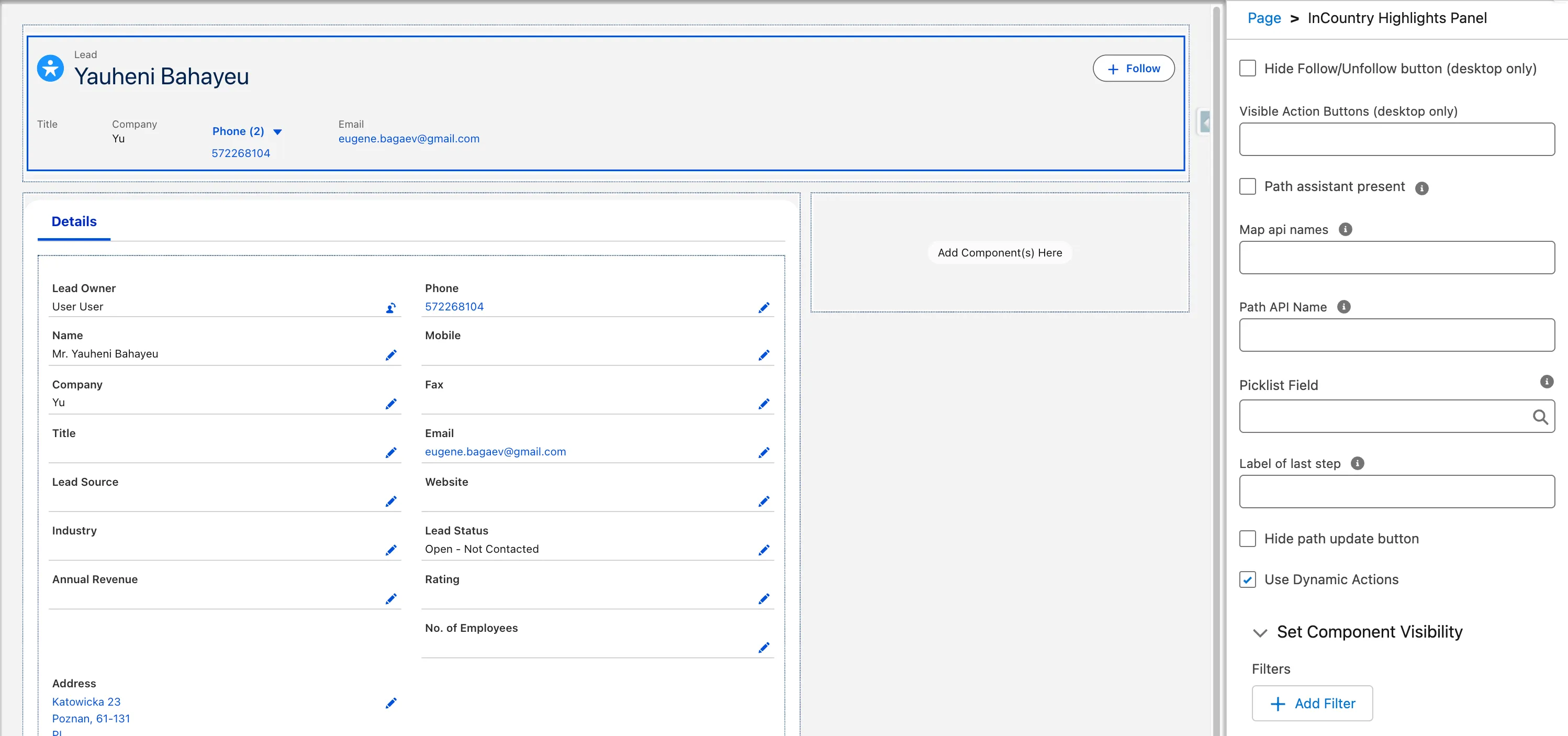
If the Order field contains duplicate values, the correct display sequence of actions is not guaranteed.
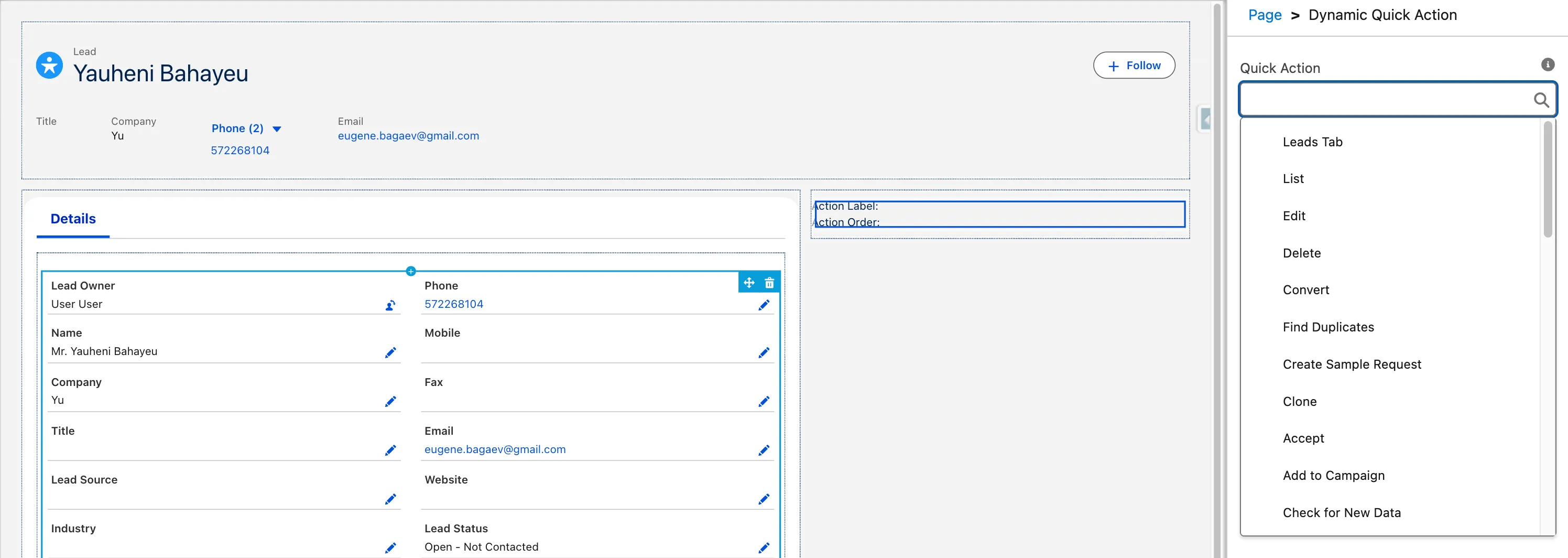
If the currently selected Quick Action is not supported by the organization or the current object, it will simply not appear in the Record Header. This is standard Salesforce behavior.
2.2 Visibility Filters
Select the specific InCountry Dynamic Action component on the canvas and click Add Filter to configure conditional display logic.
-
By Record Field: Displays the action based on record field criteria (e.g., showing
Close Dealonly ifIsClosed = False). Quick actions update dynamically when records are modified usingInCountry Record DetailorInCountry Dynamic Form Section. -
By User Profile/Role: Limits action availability based on administrative or operations profiles. Changes to user profiles or roles require a page refresh to apply.
-
By Device: Shows specific actions depending on device type (e.g., showing
Log Mobile Callonly whenDevice = Phone). Adjusting active device types requires a page refresh.